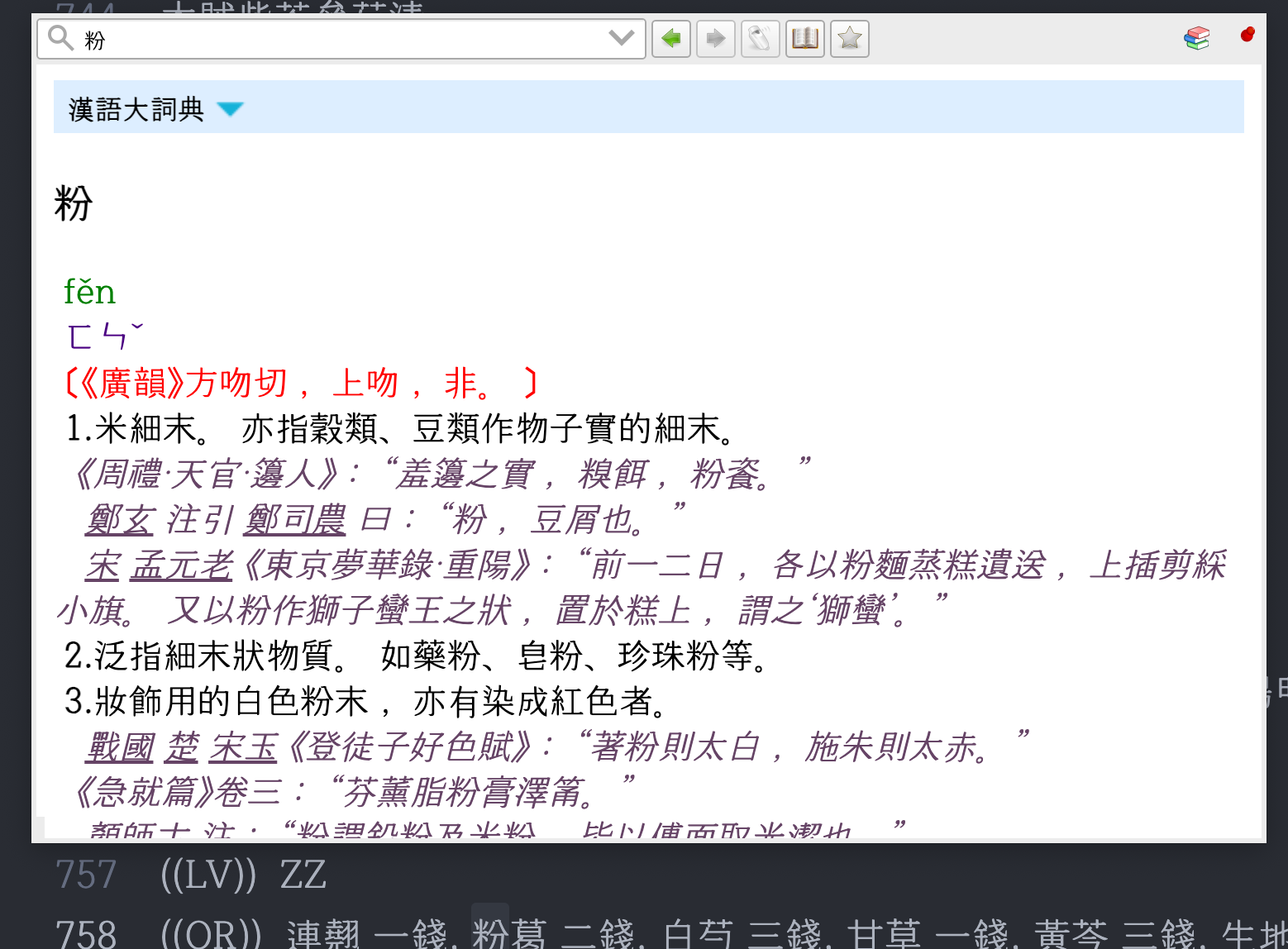
GoldenDict is a program that instantly searches various dictionaries.
Are you still struggling to find words in the Great Chinese Dictionary using the find function in Hangul files?
Are you flipping through dozens of books to reference various dictionaries when translating?
Almost all languages are compatible - Great Chinese Dictionary, Idu Dictionary, Russian Dictionary, and more.
Since this program has been used for decades, all kinds of dictionaries from around the world are publicly available.
Install it now and watch your work speed increase dramatically!
How to Use
Installation
- Download (Windows): http://goldendict.org/download.php
- Download (Mac): https://digitalpalidictionary.github.io
- Dictionary data: You can find them in many places by searching.
Basic Settings
To search dictionaries anytime after booting, check the following items in the settings window:
- Start at system startup
- Close to system tray
- Start in system tray
Hotkeys
- Select a word you want to search and press the hotkey to search and display its content.
- It shows dictionary content in a popup whether in an internet browser or Hangul, without needing to open the dictionary window.
- Go to ‘Settings > Hotkeys’ and check ‘Scan popup (copy to clipboard)’
- Default hotkey =
Ctrl+CC(pressCtwice consecutively while holding down Ctrl key)
Dictionary Files
- After downloading dictionary data, you need to enter the file path in GoldenDict.
- Settings > Dictionaries (F3) > Add > Specify dictionary data location
- If all dictionary data is in one folder, you can just specify that folder and check ‘recursive (search subfolders)’.
- After specifying the location, click ‘rescan (rescan files)’.
- (Optional) In the ‘Dictionaries’ tab, set the priority order of dictionaries when displaying search results. (e.g., Great Chinese Dictionary at the top)
Changing Font Size
- Search term: Menu > View > Font size > Zoom search pane
- Dictionary content (popup window): Menu > View > Font size > Zoom
My Experience
Displaying Old Hangul
- Dictionaries containing Old Hangul, like Idu Dictionary, may display garbled text.
- In this case, you need to modify the font settings file. (On Mac, you can modify it in the settings window)
- Create an
article-style.cssfile in theC:\Users\your account name\AppData\Roaming\GoldenDictfolder and paste the following content. - Restart GoldenDict to see the Old Hangul font.
body {
  font-family: 함초롬바탕;
}
For Those Using Multiple PCs
- Those who use multiple PCs at home, work, etc., probably already use sync programs on each PC.
- Google Drive (installed program) is a typical example.
- Install GoldenDict on each PC and put dictionary data in the Google Drive folder to use the same dictionaries on all PCs.
Dictionary Data
- Dictionary data has headwords and descriptions separated by tabs.
- Headwords and descriptions are written in one line. (Line breaks are usually indicated as
\n.) - Create data in the sample format below and compile it in
StarDictformat to use it in GoldenDict. - You can find many compiler programs by searching for
stardict editoron Google.
Namhae	My favorite region in Korea.\nBut it's too far.
Buyeo	My second favorite region in Korea.\nIn Busan, sundae is eaten dipped in makjang, while in Buyeo, odeng is eaten dipped in chojang.
A browser-based alternative
As you can tell by now, the hard part of GoldenDict is getting started.
Install the program, hunt down dictionary data, point it at the right folders, rescan, and write a css file when Old Hangul comes out garbled.
Sit down at a different PC and you walk through all of it again.
That is why I put the same kind of dictionaries into a browser.
Korean Studies Web Dictionary Guide — nothing to install, no data to collect.
- It searches more than twenty dictionaries at once — the Great Chinese Dictionary (Hanyu Da Cidian), the Dankook Sino-Korean dictionary, the Idu Dictionary, historical term usage dictionaries, the Encyclopedia of Oriental Medicine, Mulmyeonggo, the Encyclopedia of Korean Culture, and more.
- There are 1.42 million headwords.
- Results come grouped by dictionary, so you always see which source a definition came from.
- Korean or hanja, either works. Headwords like
한국(韓國)are split and registered both ways in advance. - Multi-code Hanja are matched for you.
車has two code points that look the same (U+8ECA and U+F902) — either one lands on the same result. - References inside a definition, such as
☞ 족궐음간경(足厥陰肝經), are clickable — one tap jumps to that headword. - Every search updates the address bar, so a result is easy to cite in a footnote or send to someone.
The garbled text you fixed above with an article-style.css file does not happen here either.
Fonts covering the hanja extension blocks are loaded alongside the dictionary data.
GoldenDict still has its place, of course.
Its Ctrl + C C scan popup is a convenience the web version does not replace.
For something close to it, there is the Korean Studies Toolkit Chrome extension — dock it beside your browser and look words up right where you read them.
And if the hanja you want to look up is hard to type, enter it with the Unicode Hanja IME — break the shape into radicals, no reading required.